
Phantom Camera control on a Mac.
Configure and operate your Phantom Camera or CineStation. Live, colour-accurate preview. Queued downloads to unlimited save destinations.

 SÉANCE® v3.0 FOR macOS
Camera control on a Mac.
Configure and operate your Phantom Camera or CineStation. Live, colour-accurate preview. Queued downloads to unlimited save destinations.

Latest releases


Uncategorised
- Details
- Written by: Administrator
- Category: Uncategorised
- Hits: 146
Amiga ANIM movies, natively in your favourite macOS apps.
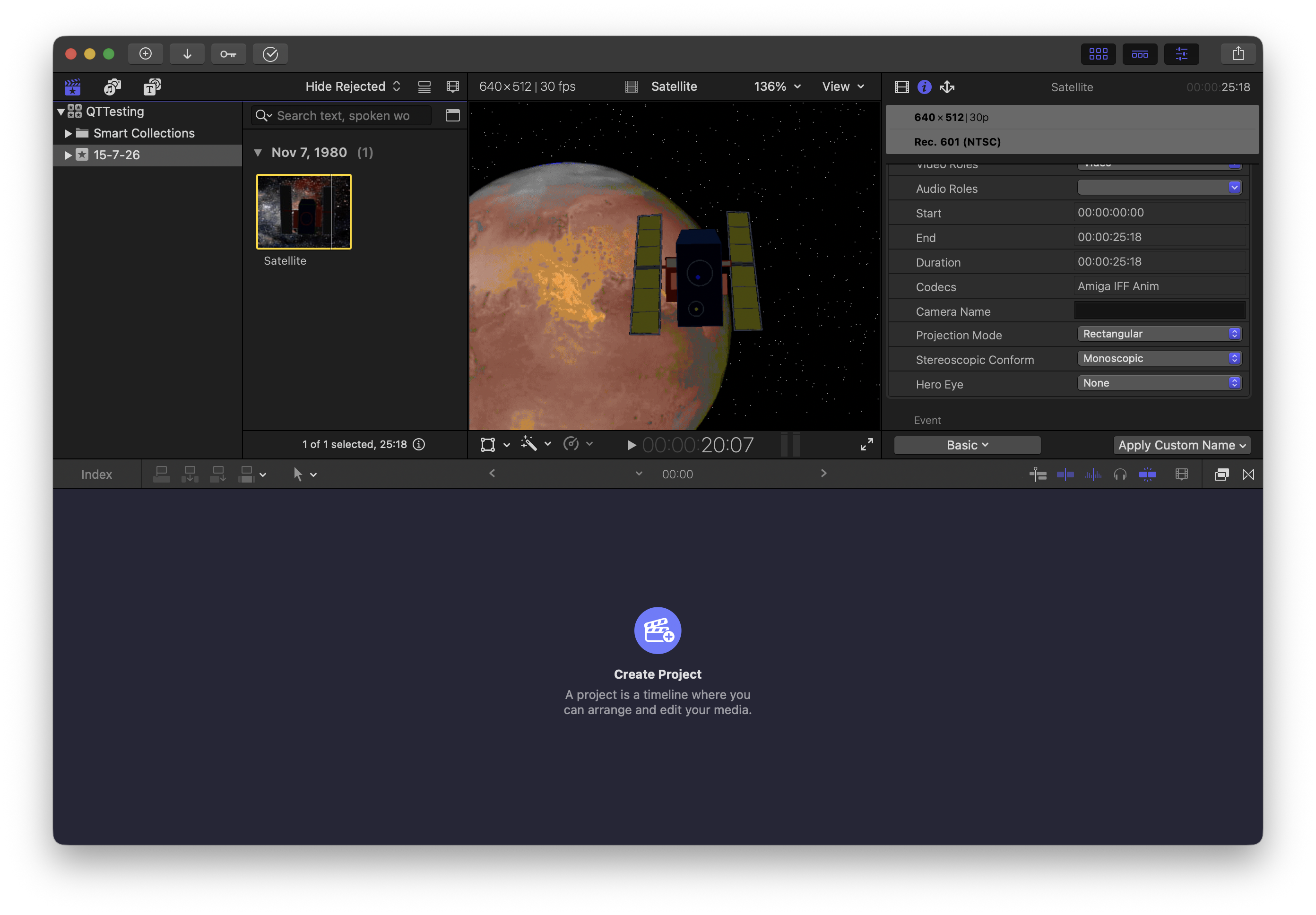
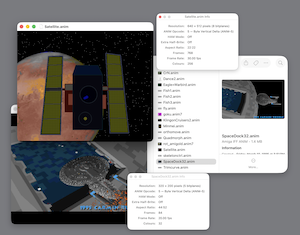
The Amiga ANIM Toolkit allows people to use Amiga Animation movies natively in their favourite macOS apps.
Apple Media Extension
Apple Media Extension plugin for macOS.
ANIM Formats
Supports ANIM opcodes 2/3 (long & short deltas), Anim 4, Anim 5, Anim 7 (long & short deltas), Anim 8 and Anim J.
LHA and LZH Archives
Built in, is the ability to de-archive ".lha" and ".lzh" archive files. Additional tools are no longer needed to view the movies.
Player App
Includes a player app, which provides detailed file information.
Looking for Amiga ANIM files?
The best source on the internet, is the Aminet.Net archive. This website is a dedicated repository of software and other files for the Amiga computer. Click on this link https://aminet.net/pix/anim, to go directly to the ANIM movie section.
How Licensing Works
All Glue Tools products are licensed on a "per machine" basis. This means that anyone can use the software on the machine that has the license. If you need to move the license to a new system, you can. Simply use your license code to "Revoke" the license from your system. Once the machine has been revoked, you can go to your new machine and activate it. There are no restrictions or limitations on the number of times you can move your license.
Privacy Policy
Glue Tools does not collect any data. Glue Tools does not depend on or use any third party services to allow this software to work.
- Details
- Written by: Administrator
- Category: Uncategorised
- Hits: 157
This software has been created for both macOS and Windows.


Phantom Cine AMA for Avid allows you to work with Phantom Cine ".cine" raw files natively in Avid Media Composer, without rendering or transcoding. On supported systems, you will be able to playback, edit or transcode the Raw files with ease. Adjust the color of the image, using the very same color controls that are used on the camera hardware. With the Phantom Cine AMA plugin, you will always have a perfect color match every time. You can modify the color of each individual shot non-destructively, leaving the original raw files unchanged.
Demo Features
- Reads Phantom Cine files with a Water Mark (a Red Bar through the image)
- Time Code is Fixed to 24 fps in the demo version
- Time Code time is Fixed to 09:09:09:00
AMA Linking a Phantom Cine file
You can simply import Phantom Cine files directly into the Media Composer timeline, without any transcoding or rendering. To import Phantom Cine footage using Media Composer 8.x, select the "File...->Link to AMA File(s)..." (or "File...->Link to AMA Volume...") menu item. A panel will open, allowing you to select any Cine file that you have available.
Once selected, your Phantom Cine file will appear in your Bin. At this point you can drag the clip onto the timeline and start working with it. No rendering required.
Changing the Phantom Cine Color Processing
Because the files are Raw files, you can non-destructively change the color settings to suit your needs. Once you have a Cine imported into a Bin, you can right-click on it and select "Set Source Settings..."
This opens a new "Source Settings" panel, in which you can adjust color of your Cine file. The controls provided use the very same color science available in Glue Tool's Séance package or Vision Research's PCC Camera package. When you adjust these settings, you are adjusting the image the very same way that the camera hardware would.
These sliders are populated by values that are stored in the Phantom Cine file's header. Any changes that you make to these values will be saved inside the Avid MC project file. The original Cine is never modified.
Resetting the values back to the Cine's original values is as simple as selecting the "Settings" popup menu, and choosing "Default Settings." This will restore your image back to the way it was originally saved.
The Color Controls, including Brightness, Gamma, Gamma Red, Gamma Blue, Gain, Gain Red, Gain Green, Gain Blue, Pedestal Red, Green and Blue, Saturation, Flare and Tone Map, each control how the image is rendered on screen. As you adjust each of these values, you will be able to see the preview image update. Once you have adjusted the imagery, you can select "OK" or "Cancel" to exit the panel. The updated settings should now be applied to the Cine.
Changing the Image Aspect Ratio with FrameFlex
Anamorphic imagery is loaded into Avid at full resolution. This means that the imagery will be stretched when viewed. To correct the imagery so that it looks right, you can open the Clip's Source Settings menu. Once opened, click on the "FrameFlex" tab. You will see an "Image aspect ratio" popup menu. This will likely be set to the default aspect ratio for the project. If you need to change it, simply select the ratio that you need, here. Once you have selected the desired aspect ratio, click on Apply and "Ok" to accept the changes.
How Licensing Works
All Glue Tools products are licensed on a "per machine" basis. This means that anyone can use the software on the machine that has the license. If you need to move the license to a new system, you can. Simply use your license code to "Revoke" the license from your system. Once the machine has been revoked, you can go to your new machine and activate it. There are no restrictions or limitations on the number of times you can move your license.
- Details
- Written by: Administrator
- Category: Uncategorised
- Hits: 142
Native Phantom Cine file Playback on Intel and Apple Silicon computers is here!


Ouija™ is a Phantom™ ".cine" file viewer program. You can view and playback the Phantom Cine files in Real Time. In addition, you can trim the timeline, adjust color and export these files out to Apple ProRes MOV files.
Debayer Modes
High Quality Image Mode, Grayscale and RAW Sensor Data debayer modes are available options.
Color Adjustments
Controls include the same color adjustments as the camera and PCC.
SMPTE Timecode
Displaying SMPTE Timecode is an option.
Apple ProRes MOV files
Exporting .cine files to ProRes MOV files is a feature of Ouija. All ProRes compression types are supported.
How Licensing Works
All Glue Tools products are licensed on a "per machine" basis. This means that anyone can use the software on the machine that has the license. If you need to move the license to a new system, you can. Simply use your license code to "Revoke" the license from your system. Once the machine has been revoked, you can go to your new machine and activate it. There are no restrictions or limitations on the number of times you can move your license.
Privacy Policy
Glue Tools does not collect any data. Glue Tools does not depend on or use any third party services to allow this software to work.
- Details
- Written by: Administrator
- Category: Uncategorised
- Hits: 125
Download Phantom footage . . . using your Macintosh!


Séance LITE is a feature reduced version of Séance that allows you to download Cine files on a workstation or laptop. The software package can let you store SMPTE Timecode into the Cine file, download the same Cine to multiple destinations and allows you to control the Phantom Camera/CineStation for video play out via HD-SDI. Also, those Cameras or CineStations that include a 10Gigabit Ethernet Port are supported when used with a 10Gb Ethernet connection.
All from the Mac!
From the ground up, this software was built to be a macOS application. It takes advantage of the latest technologies from Apple to provide the best user experience possible. Séance™ LITE has an intuitive interface which lets you operate your Phantom Camera or CineStation quickly and efficiently. The User Interface elements clearly identify what is happening with your Cine files, so you can see “at a glance” what is happening . . . even from a distance.
This software package includes features such as GPU Accelerated Graphics, Drag & Drop and Multi Processing. These features are heavily used throughout the application to make your project’s workflow easier, sophisticated and efficient.
Download Apple ProRes from your Flex4K
Séance™ v3.0 LITE also lets you download Apple ProRes compressed footage that has been saved by your Flex4K to your Cinemag. You can quickly trim your shot and download it into a MOV file. As with Cine Raw footage, you simply drag & drop the Apple ProRes footage into your download queue. Multiple files can also be created simultaneously, if multiple save destinations are enabled.
Real Time & Color Accurate Live Preview
Séance™ LITE includes a GPU Accelerated Preview that closely matches what is displayed on the HD-SDI Output of your Phantom device. By using the same color science algorithms that Vision Research built into their cameras, Séance™ LITE can provide a color accurate representation that duplicates what you would normally see from the HD-SDI output on the camera. The Cine Preview provides a match to what the DP expects to see.
Séance LITE also provides all of the image adjustment controls that are available on the camera. Color adjustments can be made on a shot by shot basis. Séance LITE provides complete set of color and exposure controls which you can use to alter the appearance of your Cine shot, before you save it. All of the settings are then stored into the header of your Cine file, allowing for non-destructive creative color decisions. When combined with Glue Tools’ line of Phantom Cine packages and plugins, you can ensure consistent color processing all the way through your production.
Queued Downloads & Multiple Save Destinations (Get Home Faster!)
Séance LITE tries to help. You can enqueue all of your shots, so that they automatically download. While your shots are downloading in the background, you can continue to adjust your imagery. Add shots (or remove them!) when you are ready.
Instead of saving a Cine file to a drive and then spending hours copying those files to other drives, why not write to all the drives at once? With Séance™ LITE you can specify an unlimited number of Save destinations. While you are downloading, each location gets an exact duplicate of the Cine file, saving you hours of file copying. Subfolders are also created across each volume for those productions that need a predetermined directory structure.
Bad Pixel Detection & Repair
As Cine files save the raw untouched sensor data, these faulty pixels can sometimes be saved into the file. Many Editorial and Color Grading packages are unable to detect and fix these pixels. With Séance™ LITE you can optionally repair these pixels before the data is saved into the Cine file. Your Colorist will never see a white dot again.
Background Checksum Generation
You can now generate Checksums on your download files, from within Séance. These Checksums can be generated after each download, or, after all of your downloads. The results are then added to your log file, as each checksum has been completed. Séance uses "xxHash 64-bit". You can find the details at their website: www.xxhash.com
This hash system is really very fast and provides little impact on Séance during 10Gb downloads.
Full Support for SMPTE Time Code, High Res Timestamps and Range Data
With the introduction of the Phantom Flex, SMPTE Time Code became available. Soon afterwards, most Phantom Cameras could internally generate a SMPTE Time Code timestamp even if they didn't include SMPTE Time Code hardware! With Séance™ LITE you can now save that Time Code information right into the Cine file. Séance LITE also supports the storage of High Resolution Timestamps as well as Range Data (if present).
Included with a Séance LITE purchase
- License only activates the feature reduced version of Séance. A full Séance license is needed, in order to activate Camera Control features.
- License activation on one computer (unless more than one license is purchased.)
How Licensing Works
All Glue Tools products are licensed on a "per machine" basis. This means that anyone can use the software on the machine that has the license. If you need to move the license to a new system, you can. Simply use your license code to "Revoke" the license from your system. Once the machine has been revoked, you can go to your new machine and activate it. There are no restrictions or limitations on the number of times you can move your license.
We understand Film, Television and Volumetric Imaging.
Glue Tools is always open to new projects and ideas. No project is too big or too small.
consulting@gluetools.com →